The quick answer
Choose Hotel Lobby or On The Radar for two people, upload one portrait for each person, describe an optional original audio topic and review your settings. Confirm the credit quote, wait for the saved task and download the finished MP4 from My Videos.
Open the rap video studio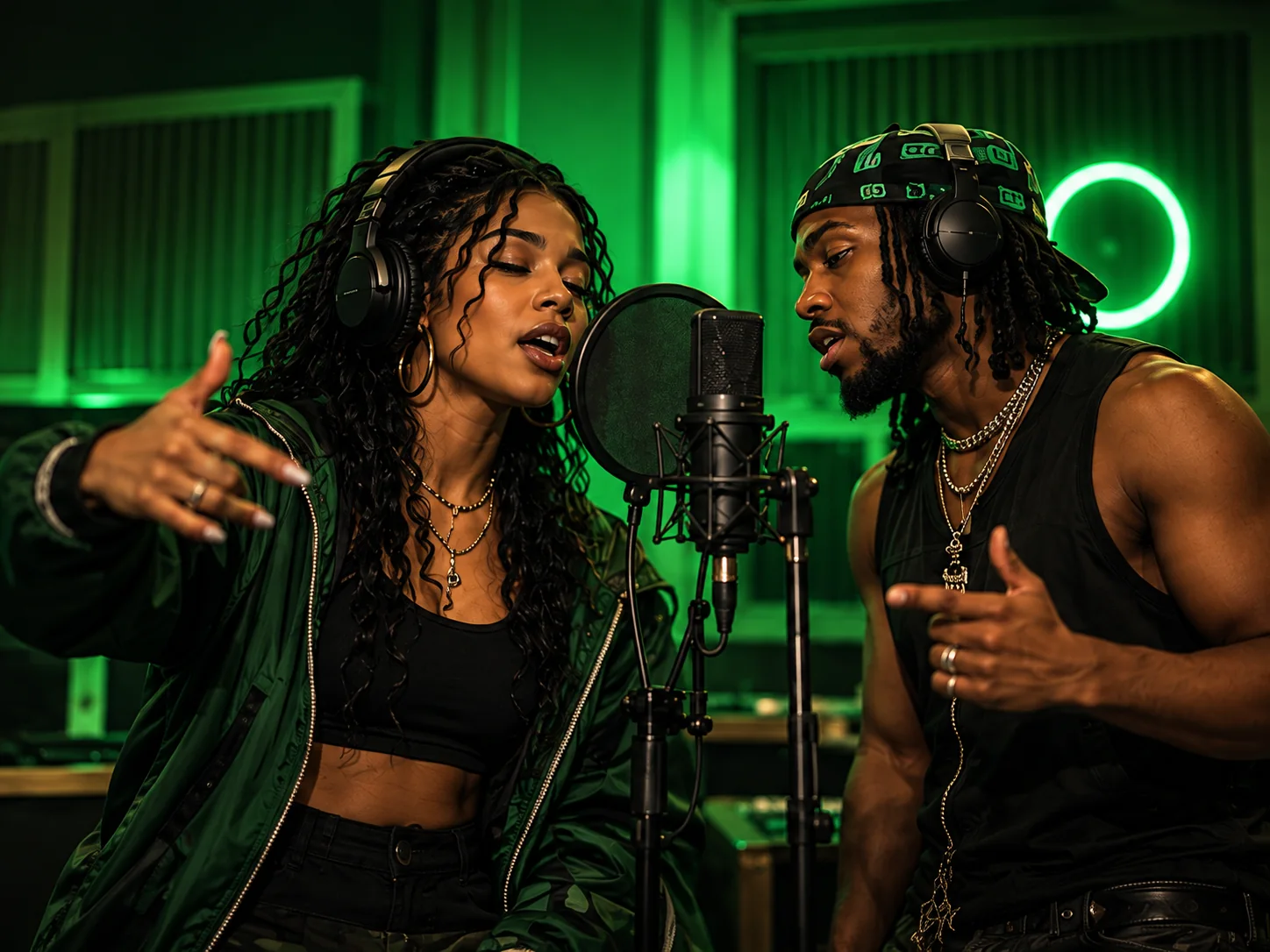
Before you start
- For a duo, prepare two separate, clear portraits with one person per image. Hotel Lobby and On The Radar both require two photos.
- Use JPEG, PNG or WebP images up to 2 MB each. Avoid covered faces, heavy filters and distant group shots. Get permission to use the photos.
- Decide the occasion and mood: a birthday, a friendship joke or a friendly rivalry gives the performance a clear idea.
- Have an account and enough paid credits for the quote. Browsing examples is free; there is currently no free generation trial.
Make your video in six steps
Choose the scene for your idea
Open the generator and select Hotel Lobby for an orange-room duo or On The Radar for the green studio with a microphone between two people. Hotel Lobby also offers stage choices. For a solo performance, Tiny Desk uses one reference image instead.
Upload one reference per performer
Add the portraits to separate photo slots. Use similar framing and good lighting so both faces have useful detail. If both people are in one source photo, first prepare a separate crop of each person. Do not upload the group image into both slots.
Write a short audio topic
Leave generated audio enabled if you want original vocals and music. Describe who the performance is for, one personal detail and the mood. The topic accepts up to 500 characters. You can turn audio off if you want a silent clip to edit later.
Review the format and credit quote
Open video settings and compare the available model, resolution, duration and aspect ratio. A 9:16 frame suits a phone screen; 16:9 gives a landscape layout. Duet themes support short clips, and the form shows the options available for your selection. Check the exact quote before committing credits.
Confirm once and follow the saved task
Sign in, check both photos and settings, then confirm generation. Wait for the saved task status rather than repeatedly submitting. If you leave the page, an accepted task continues; open My Videos to check it before starting another.
Review the result and download the MP4
Watch the full clip and listen to the audio. Check both faces, hand movement, framing and whether the mood fits your idea. Download the MP4 from the result or My Videos. Generated audio is included when enabled; there is no separate MP3 or editable lyrics export.
An audio topic you can adapt
Use a subject, a detail and a tone. Audio is newly generated: theme names do not include a named song recording, and exact words, voice identity or line timing are not guaranteed.
A friendly birthday duet for Alex. Mention our late-night gaming sessions and disastrous cooking attempts. Keep it playful and warm, with an upbeat hip-hop feel.
If the result is not what you expected
- One person is missing or the faces blend
- Check that you selected a two-person theme and used a different, clear portrait in each slot. Avoid a group image or a heavily cropped face. Stronger references can help, but resemblance varies between generations.
- The words or voices do not match the request
- The audio topic is guidance rather than a script or voice-cloning control. Reduce it to one subject and mood. If you need exact lyrics or a licensed recording, plan that separately in an editor after downloading.
- The task is taking longer than expected
- Processing time depends on the model, settings and queue. Check the saved task in My Videos. Do not submit a replacement while its status is uncertain, as a new confirmed generation spends credits.
- Generation failed or the output was rejected
- Check the final saved status and credit balance. A confirmed failure or rejected output receives a full generation-credit refund. If the task remains unclear, contact support with its task details before trying again.
Common questions before you generate
Which theme makes the video with a microphone between two rappers?
Choose On The Radar for the green studio duo setup. Upload two separate portraits. The theme guides the shared-room composition; faces, movement and exact microphone placement can vary in the final video.
Do I need to install an AI rap video app?
No. You can prepare and generate the video online in a browser, including on a phone. You do not need to download a separate app.
Will this create a full rap song or music video?
AIRAP creates short performance clips. It does not provide a complete song, editable lyric sheet or long-form music video from one generation. Check the duration options in the selected theme before confirming.
Choose your next step
AI rap duo video
Compare two-person scenes and make a duet from separate photos.
AI video photo requirements & settings
A practical upload checklist, aspect ratios, resolution choices and pre-generation checks.
AI rap prompts & audio topic examples
A reusable prompt formula, theme examples and advice for keeping original audio focused.